
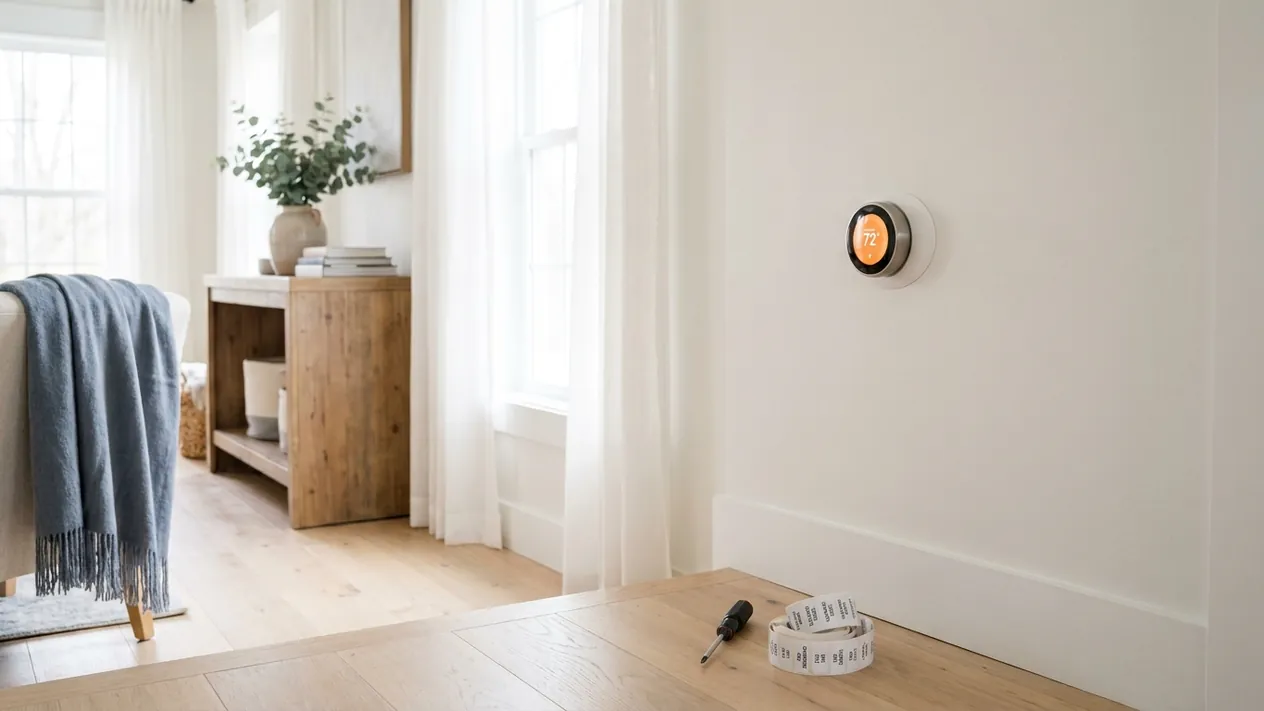
DIY or hire a pro? What smart thermostat installation costs around Louisville
A straight swap on a system that already has a C wire is a do-it-yourself job for anyone who has replaced a light switch. Where it stops being a DIY job:
- No C wire and no spare wire in the wall. The fix is either a power-extender adapter at the furnace (fine for most people) or a new wire run from the air handler to the thermostat. Running wire through a finished wall is the part people pay for.
- Electric baseboard or wall heaters. Those are line voltage (120V or 240V). A normal smart thermostat will not work and the wiring can hurt you. That is an electrician's job with a line-voltage smart thermostat.
- Two-stage or dual-fuel systems (a heat pump with a gas furnace backup, common in Southern Indiana) where you are not sure which wire does what. A wrong O/B setting means the heat pump runs backwards.
Around Louisville, Jeffersonville and New Albany, an HVAC company or electrician typically charges in the range of $100 to $250 in labor to install a thermostat you supply, more if they have to run a new C wire. Many HVAC companies will do it as part of a fall tune-up visit for less than a standalone trip. Ask for the price before they come out. Local heating and cooling companies are listed here and so are electricians, free to call.
Rebates change every year. LG&E and KU on the Kentucky side and Duke Energy on the Indiana side have both run smart thermostat rebate and demand-response programs; check their current offers before you buy, because the rebate sometimes only applies to specific models.
Worth Every Minute
A smart thermostat is a relatively inexpensive upgrade that can trim your heating and cooling bills. ENERGY STAR estimates that certified smart thermostats save about 8% of heating and cooling bills on average, or roughly $50 a year; results vary with climate, comfort settings, occupancy and equipment. How quickly it pays for itself depends on what you pay for the thermostat and how much your home spends on heating and cooling. Utility rebates, where available, shorten that time.
Better yet, this is a genuine 30-minute project for most homes. If you've ever replaced a light switch, you have enough electrical comfort for this job.
Step 1: Check Compatibility First
Before you buy anything, verify your system is compatible. Most smart thermostats work with conventional forced-air systems (gas, oil, electric), heat pumps, and multi-stage systems. They typically do NOT work with:
- High-voltage electric baseboard heat (usually 120V or 240V)
- Boiler systems with only two wires and no fan
- Some older proprietary systems
The easiest compatibility check: visit the manufacturer's site and use their compatibility tool. Nest, Ecobee, and Honeywell all have these. You enter your existing thermostat's wire colors and get a yes/no answer in 2 minutes.
The C-Wire Question
The most common installation snag is the C-wire (common wire). Smart thermostats need a constant 24V power source to run their WiFi radio, display, and sensors. Older thermostats only needed power when the system was actively running, so many homes (especially those built before 2010) don't have a C-wire connected at the thermostat.
Here's how to figure out your situation:
- Remove your existing thermostat from the wall (just unscrew it; the wires hold it on). Look at the wires connected to the terminals.
- If you see a wire connected to a terminal labeled "C," you're set.
- If there's no wire on the C terminal, look for an unused wire bundled up behind the thermostat. If there's a spare wire, you may be able to connect it at both ends (thermostat and air handler).
- If there's genuinely no C-wire and no spare wire, you have two options: run a new wire (an electrician can do this for $100–$200), or use a C-wire adapter kit (Nest sells one for ~$25, and third-party options work with any thermostat).
Step 2: Choosing Your Thermostat
Three brands dominate the market for good reason:
| Model | Price Range | Best For | C-Wire? |
|---|---|---|---|
| Google Nest Learning Thermostat | $130–$180 | Auto-learning schedules, clean design | Required (adapter sold separately) |
| Ecobee Smart Thermostat Premium | $200–$250 | Remote room sensors, C-wire adapter included | Adapter included |
| Honeywell Home T9 | $130–$160 | Room sensor support, broad compatibility | Required (adapter available) |
For most homeowners, the Nest is the easiest to use and looks the best. If you have rooms that are chronically too hot or cold, Ecobee's room sensors make a real difference. If you have a heat pump or a more complex system, the Honeywell T9 has the broadest compatibility.
Step 3: Turn Off Power at the Breaker
Before touching any wires, go to your electrical panel and flip the breaker for your HVAC system. It's usually labeled "Air Handler," "Furnace," "Heat Pump," or "A/C." If you're not sure which one, turn off the thermostat, flip a breaker, and check whether the thermostat display goes dark.
Use a non-contact voltage tester on the wires at the thermostat to confirm power is off before you start disconnecting anything. This is a $15–$20 tool that belongs in every home.
Step 4: Remove the Old Thermostat and Label the Wires
This is the most important step to get right:
- Take a clear photo of the existing wiring before you touch anything. Show all wire colors and which terminal each connects to. This photo is your safety net if anything goes wrong.
- Use small wire labels or masking tape to tag each wire with its terminal letter (R, G, Y, W, C, etc.) before disconnecting.
- Loosen the terminal screws and pull each wire free. The wires are thin. Don't let them fall back into the wall. If they slip in, use needlenose pliers or a bent paperclip to fish them out.
- Unscrew the old thermostat base from the wall.
Step 5: Mount the New Base Plate
- Thread your labeled wires through the center hole of the new thermostat base plate.
- Hold the base plate level against the wall (use a small level; a crooked thermostat bothers people more than they admit).
- Mark the screw hole locations with a pencil.
- If the holes don't land on studs or drywall anchors, use the plastic wall anchors included with your thermostat. For those, you'll need a drill with a small bit (usually 3/16") to pre-drill the holes.
- Screw the base plate to the wall.
Step 6: Connect the Wires
Your new thermostat's base plate has labeled terminals. Match each wire to its corresponding terminal using your labels and the photo you took:
- R or Rc/Rh: Red wire: 24V power from the transformer
- G: Green wire: fan
- Y or Y1: Yellow wire: cooling / compressor
- W or W1: White wire: heat
- C: Blue or black wire: common (24V return)
- O/B: Orange or dark blue: heat pump reversing valve (if applicable)
Heat pumps are everywhere in all-electric subdivisions on the Indiana side. If you have one, the O/B wire and the "heat pump" choice during setup are the two things that matter. Most brands here (Carrier, Bryant, Trane, Lennox, Goodman) energize the reversing valve in cooling, the "O" setting; Rheem and Ruud use "B." If the house blows cold air when you ask for heat, that setting is backwards.
Push each wire firmly into its terminal slot until it clicks, or tighten the screw until snug. Give each wire a gentle tug to confirm it's seated.
Step 7: Attach the Display and Power On
Snap or press the thermostat display onto the base plate. Restore power at the breaker. The display should light up within 30 seconds.
Most smart thermostats walk you through setup on-screen: WiFi network, location (for weather integration), system type, and initial schedule. Download the companion app on your phone before starting. Nest uses the Google Home app, Ecobee has its own app, and Honeywell uses the Resideo app.
Setup typically takes 5–10 minutes. The thermostat will verify your wiring connections automatically and flag any issues.
C-Wire Adapter Installation
If you need a C-wire adapter, the process involves installing a small module inside your air handler (usually held in by a screw). You'll connect your existing thermostat wires to the adapter, which draws power from the 24V transformer at the air handler and provides a virtual C-wire back to the thermostat. Each brand's adapter comes with specific instructions. Follow them over these general steps.
Troubleshooting Common Issues
- Display won't turn on: Check that the breaker is on, wires are fully seated, and the C-wire is connected. A blown control board fuse (usually 3A) can also cause this.
- System won't heat or cool: Verify the correct system type was selected during setup (conventional vs. heat pump).
- WiFi won't connect: Most smart thermostats only support 2.4GHz networks, not 5GHz. Connect to your router's 2.4GHz band.
- Short cycling (turning on and off rapidly): Often a wiring mismatch. Double-check your wire assignments against the original photo.
What to Expect in Energy Savings
ENERGY STAR estimates that certified smart thermostats save about 8% of heating and cooling bills on average, or roughly $50 a year. At 8%, a home spending $1,000 a year on heating and cooling would save about $80; your result depends on your climate, settings and equipment. Check with your electric or gas utility: some offer rebates on qualifying models, and programs change often. Check your utility's website before you buy.
Common questions
Do I need an electrician to install a smart thermostat?
Not for a normal 24-volt furnace, AC or heat pump thermostat with a C wire. You do if you have electric baseboard heat, if a new wire has to be run through finished walls, or if you open the furnace and are not comfortable with what you see.
How much does it cost to have a smart thermostat installed?
Figure $100 to $250 in labor locally for a standard swap on top of the thermostat itself, and more if a C wire has to be pulled. Some HVAC companies throw it in with a maintenance visit.
Will a smart thermostat work with my heat pump?
Yes, Nest, Ecobee and Honeywell all support single and two-stage heat pumps with auxiliary heat. Set the system type correctly during setup and confirm the O/B setting.
How much will it actually save?
ENERGY STAR's figure is about 8% of heating and cooling costs. On a typical Kentuckiana gas-and-AC home that is in the range of $50 to $100 a year, and more in an all-electric house with a heat pump, mostly from setbacks while you are asleep or at work.
Tools You'll Need
- Smart thermostat (Nest, Ecobee, or Honeywell): the main purchase
- Small flathead and Phillips screwdrivers: for terminals and mounting screws
- Wire labels or masking tape: label each wire before disconnecting
- Non-contact voltage tester / pen: confirm power is off before working
- Drill with small bit: for wall anchors if mounting holes miss studs
- Small level: mount it straight the first time
- C-wire adapter kit: only if your system lacks a C-wire
By the time you've cleaned up and washed your hands, your new thermostat will probably be connecting to WiFi and learning your schedule. That's a solid return on 30 minutes of work and a couple of screwdrivers.